Verb Editor
The graph editor is where you build verbs. To open it, double-click any verb asset, or select one and click Edit graph in its inspector.
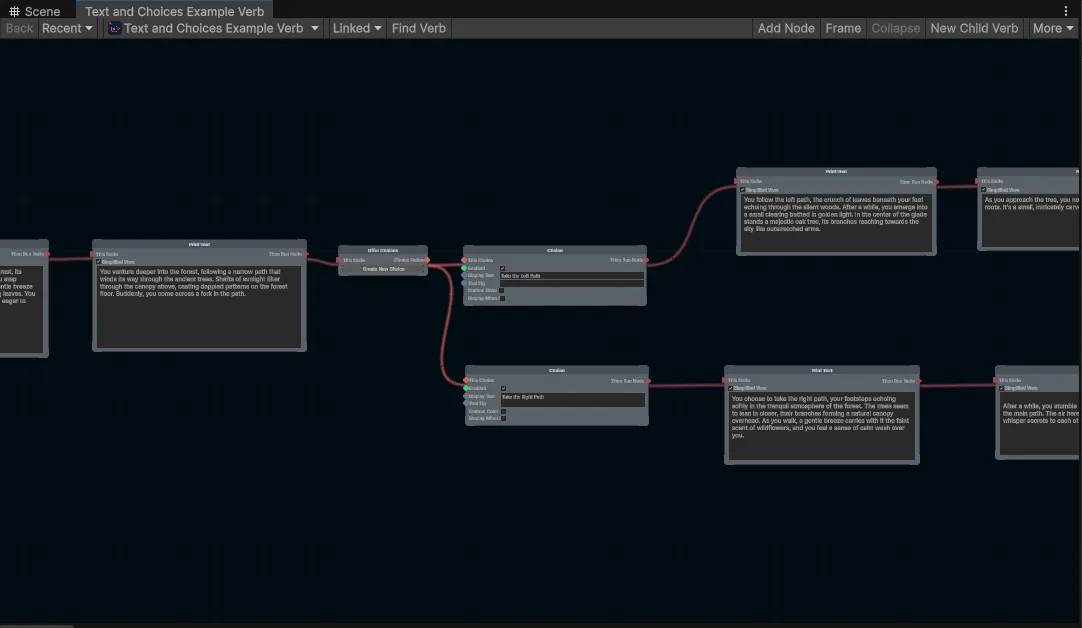
In Play Mode the running node lights up as the game plays, and you can edit the graph while it runs.
The toolbar
Section titled “The toolbar”
| Button | What it does |
|---|---|
| Back | Returns to the verb you had open before. |
| Recent | Verbs you opened recently. |
| (verb name) | The asset the verb lives in and the verb itself. The dropdown selects or pings it, and lists the other verbs in the same asset. |
| Linked | Verbs this verb runs, and verbs that run it. |
| Find Verb | Searches every verb in the project. |
| Add Node | Searches for a node and adds it at the center of the view. Double-clicking the graph does the same. |
| Frame | Centers the view on the selected nodes, or resets it when nothing is selected. Shortcut: F. |
| Collapse | Moves the selected nodes into a new child verb, and puts a node that runs it in their place. |
| New Child Verb | ActionVerbs only. Creates an ActionVerb inside this asset, and a node here that runs it. |
| More | Opens the Narramancer window, and the graph editor preferences. |
In Play Mode a second row, Watching, picks which running copy of the verb to follow. Its progress is what the graph highlights.
Mouse and keyboard
Section titled “Mouse and keyboard”| Input | Effect |
|---|---|
| Scroll wheel | Zoom in and out |
| Middle mouse button, drag | Pan |
| F | Frame the selection, or reset the view |
| Left click on a node | Select it |
| Left drag on empty space | Box-select the nodes inside |
| Left drag on a node | Move the selected nodes |
| Drag from an output port to an input port | Connect the two |
| Double-click empty space | Add a node by searching |
| Right click on empty space | Open the context menu: Search…, Create Child Action Verb, and the selection tools |
| Right click on a node | Open the node’s context menu |
Adding nodes
Section titled “Adding nodes”Use Add Node, double-click the graph, or right-click empty space and choose Search…. Type part of a node’s name and pick it. The node appears where you clicked, or at the center of the view.
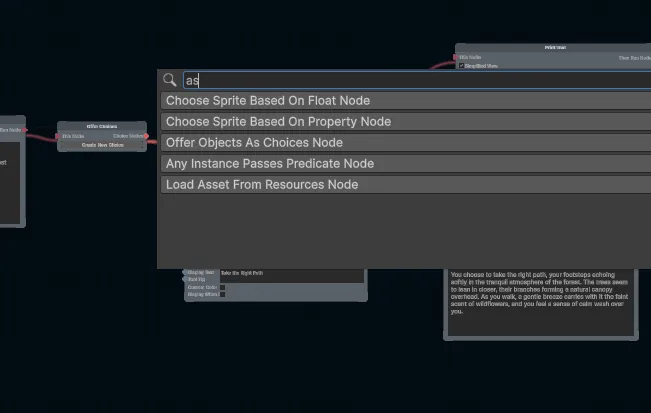
The right-click menu also lists every node by category, the same categories as the List of All Nodes.
Connecting nodes
Section titled “Connecting nodes”To build a sequence, connect runnable nodes to each other. A runnable node has two special ports shaped like arrows: This Node on the left, which runs the node, and Then Run Node on the right, which runs the next node once this one finishes.
Drag from the first node’s output port and drop it on the second node’s input port.
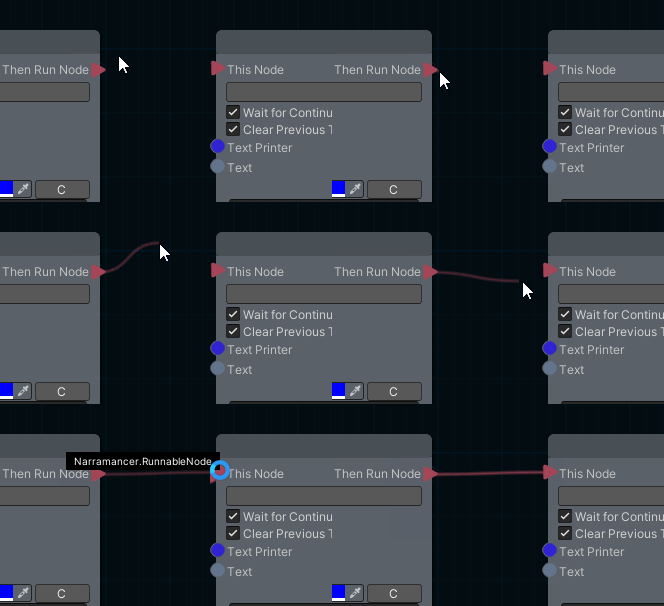
Value ports connect the same way. Ports only connect when their types match, or are compatible.
Narramancer is source-available. It's free for noncommercial use underPolyForm Noncommercial 1.0.0, and commercial use needs an Asset Store license.Source on GitHub.