Getting Started
Narramancer lets you build a game’s story and logic as node graphs. Its main feature is that a save can be made at any moment: a graph halfway through an action is saved, loaded back, and carries on from exactly where it stopped.
Installing
Section titled “Installing”-
In Unity, open Window → Package Manager, choose My Assets, find Narramancer and click Import.
-
Open Window → Narramancer once. This creates the Narramancer settings asset in
Assets/Resources, which every other part of the system reads from.
That is all the setup there is. Narramancer has no other package dependencies and needs no Player Settings changes.
| Requirement | Details |
|---|---|
| Unity version | Unity 6. Built and tested on 6000.4. |
| UI | The sample printers and menus use Unity UI (uGUI) with legacy Text. |
| Navigation (optional) | The NavMesh features, such as the Move NavMesh Agent node, need the built-in AI module. It is on by default; if you turn it off, those features are left out of the build and everything else keeps working. |
| Odin Inspector | Not required. Narramancer has its own serializer, no longer ships a copy of Odin Serializer, and works alongside Odin Inspector. |
The samples
Section titled “The samples”The samples are in Narramancer/Scenes, one folder each. Open any scene and press Play.
| Sample | What it shows |
|---|---|
| 0. Sample Launcher | A menu that opens the other four, so a single build can show all of them. Each sample gets a ◀ Samples button to come back. |
| 1. Text and Choices Example | Text revealed a line at a time, waiting for a click, then a choice that branches the story. Start here. |
| 2. Noun Creation and Destruction | Creating and destroying nouns while the game runs. |
| 3. Adding and Removing Properties | Changing a noun’s properties at runtime and reacting to them. |
| 4. Character Equipment | Equipment slots built from relationships and stats, with UI that verbs update: sprites, titles and descriptions, all saved. |
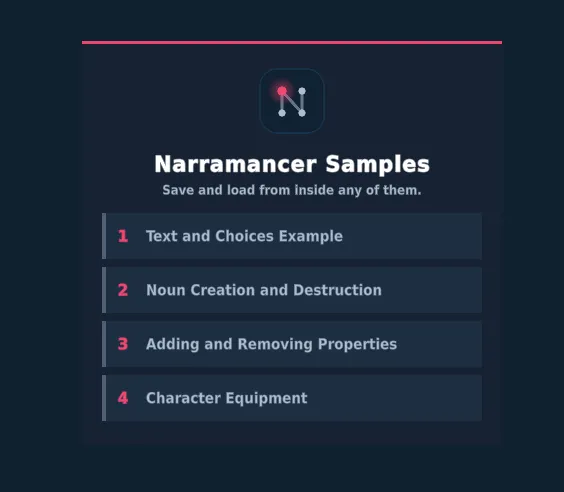
Every sample has Save and Load buttons in the corner. Try saving halfway through a conversation, then loading: the text, the choices and the graph all pick up where they were.
Running the samples in a build
Section titled “Running the samples in a build”Build Settings belong to your project, not to the package, so add the scenes yourself. Open File → Build Profiles and add 0. Sample Launcher first, then samples 1 to 4. The launcher lists whatever else is in the build, so a sample shows up in it by being added there.
How sample 1 is put together
Section titled “How sample 1 is put together”Select the Narramancer Scene object in the hierarchy. Its Run on Start Verbs list holds one ActionVerb, Text and Choices Example Verb, and that one graph is the whole sample. Double-click it to open it in the graph editor.
The text box and the choice buttons come from the Text and Choice Printer Canvas prefab, and the save and load buttons from Overlay Buttons Manager Canvas. Copy both prefabs into your own scene to get the same UI.
The building blocks
Section titled “The building blocks”Narramancer names its parts after grammar. Once that clicks, the rest of the system follows.
| Part | What it is |
|---|---|
| Nouns | The things in your game: characters, items, places, ideas. A noun asset is the template; at runtime each one becomes a noun instance with its own values. |
| Verbs | What things do, authored as node graphs. An ActionVerb runs over time and can wait (for a click, a choice, a timer). A ValueVerb answers a question instantly and returns a value. |
| Adjectives | Data attached to nouns: Properties are tags (Poisoned, Armor), Stats are numbers (Health, Damage), and Relationships are one-way links from one noun to another (equipped by, friend of). |
| Variables | Named, typed values that graphs read and write. |
Next, read about Verbs, or jump straight to Saving and Loading, the part worth reading twice.
The graph editor is built on a modified version of xNode, an MIT-licensed framework for node graph editors in Unity, included in the package. You don’t need to know xNode to use Narramancer, but its documentation explains some of the terms Narramancer builds on.
Narramancer is source-available. It's free for noncommercial use underPolyForm Noncommercial 1.0.0, and commercial use needs an Asset Store license.Source on GitHub.